 Vaulta
A budget app for iPhone that starts with today.
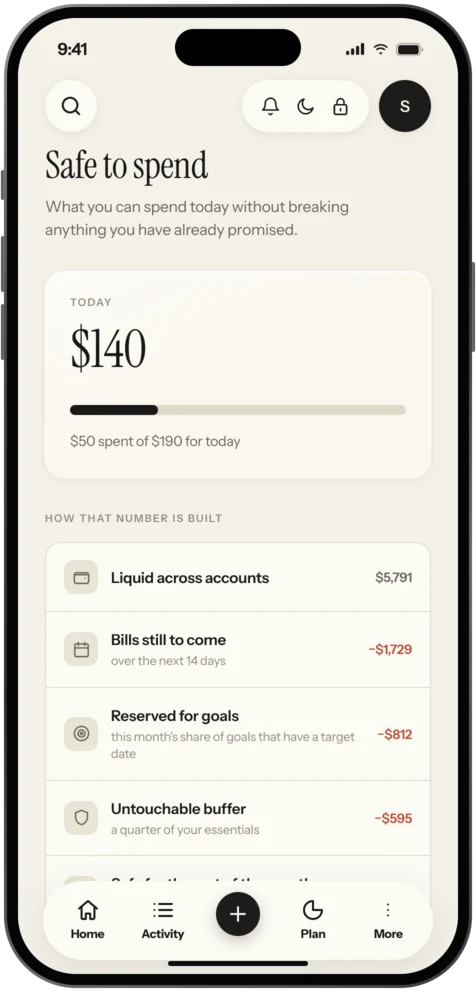
Most budgets tell you what you planned last Sunday. Vaulta tells you what is free to spend today, after bills and goals, and shows the working.
Free plan with no time limit. Pro is free for 7 days. Screens show sample data.
What a budget app should actually do
A budget is a plan for money you have not spent yet. That sounds simple, but most budgeting apps turn it into a bookkeeping chore: log every coffee, sort every transaction, and at the end of the month find out you went over on dining. By then it is too late to change anything.
A good budget app answers a smaller, more useful question while you can still act on it: can I spend this? If the answer takes more than a few seconds, you will stop opening the app, and an app you do not open is just an icon.
Vaulta is built around that question. The first screen shows a safe-to-spend number for today. It is your liquid money, minus the bills still to come this month, minus the amount you have set aside for goals, minus a small buffer for essentials. The arithmetic sits right underneath the number, so you can check it and disagree with it.
Budgets by category, without the spreadsheet feeling
You still need category budgets. Groceries, transport, eating out, fun. In Vaulta you pick a monthly amount for each one and the app shows what remains and what that means per day. If you have 240 left for groceries and ten days to go, that is 24 a day, which is easier to feel than a month-end total.
The Free plan includes 3 budgets, which is enough for the three categories that usually cause trouble. Pro and Premium remove the limit. If you want a full set of categories, see the 50/30/20 calculator for a starting split, or read about how to make a budget step by step.
Why iPhone specifically
You are most likely to wonder about a purchase when you are standing in a shop, not sitting at a desk. So the answer has to be one tap away. Vaulta has Home Screen and Lock Screen widgets, a Live Activity, Siri shortcuts (ask "how much can I spend today in Vaulta") and Control Center controls. Face ID opens the app. Reminders for bills and budgets are local, which means they are scheduled on your phone rather than pushed from a server.
Manual first, banks optional
Everything on the Free plan works with nothing connected. You add accounts and transactions by hand, import a CSV if you have one, and use the app in any country. Optional read-only bank linking through Salt Edge is available on Pro and Premium in Germany, Spain, Singapore, Australia, India, the UAE, Mexico and Brazil. You sign in on your bank's own page, and Vaulta never sees your banking password. Vaulta cannot move money.
What it does not do
Being clear about limits is part of being useful. Market data inside Vaulta is simulated and labelled that way, so do not treat it as live pricing. There are no brokerage, crypto or UPI connections. Vaulta gives information about your own numbers; it is not a financial adviser.
Who it suits
It suits people who want a daily number more than a monthly report: someone with a salary and a handful of bills, a student on a fixed allowance, a freelancer who wants to know what is really free this week. It suits you less if you want every transaction auto-imported from every account on earth, or if you need live stock quotes.
A simple first week
Day one, add your accounts and your rent or mortgage. Day two, add the other bills. Day three, pick your three biggest flexible categories and set a monthly amount for each, based on what you actually spent last month rather than what you wish you had. Day four, add one goal. Days five to seven, just use the safe-to-spend number before you buy things. Do not try to categorise your whole past. A budget you start imperfectly this week beats one you plan perfectly next month.
In the app
How it works in Vaulta
- Add your accounts and this month's bills. Manual entry is fine, or import a CSV.
- Set a monthly amount for up to three categories on the Free plan.
- Add a goal with a date. The monthly amount comes out of what is safe to spend.
- Open the Safe to spend screen, or glance at the widget, before you buy.
- Review the Reports screen once a month and adjust the amounts.
Questions.
Is there a free budget app option in Vaulta?
Yes. The Free plan has no time limit and includes unlimited manual accounts and transactions, 3 budgets, 1 goal, reports, CSV import, backups and undo.
Do I have to connect my bank?
No. Bank linking is optional, read-only and only offered in eight countries on Pro and Premium. Everything on the Free plan works by hand.
Is Vaulta on the App Store yet?
Not yet. It is coming to the App Store. Email us and we will tell you when it is out.
Can Vaulta tell me what to invest in?
No. It explains your own numbers. It is not a financial adviser and market data inside the app is simulated.
Related
Personal finance app for iOSA personal finance app for iPhone: safe to spend, budgets, goals, bills, net worth, forecast and an AI advisor. Free plan, no time limit.Expense trackerTrack expenses on iPhone without the chore. Add spending by hand, scan receipts on Pro, and see where each month goes. Coming to the App Store.Zero-based budgetingWhat zero-based budgeting is, a worked example, and how to do it on iPhone with Vaulta budgets and goals. Honest about what the app does.50/30/20 budget calculatorEnter your take-home pay and see how the 50/30/20 rule splits it into needs, wants and savings. Change the percentages to fit your life. Free.Coming to the App Store.
Free to start. Pro is free for 7 days.